 Embedded HandbookApps
4. Toolchain
For the code on the screen to turn into a working board, four things are needed: an editor, a compiler, a programmer and a debugger. They can be taken as one package or assembled from parts — this section is about what to choose and how to set it up.
Terms used in the documentation
Term Meaning integrated development environment (IDE) an editor, build and debugger in one program debug probe the debug adapter (ST-Link, J-Link) device family pack (DFP) the device support package system memory bootloader the factory bootloader in system memory mantissa, exponent the two parts of a floating-point number Intel HEX record type the type field of an Intel HEX line
4.1 What a toolchain consists of
| Part | What it does | Options |
|---|---|---|
| IDE | an editor with code navigation | Keil µVision, STM32CubeIDE, VS Code, CLion |
| Compiler | turns C into Cortex-M machine code | Arm Compiler 6 (armclang), GCC (arm-none-eabi-gcc) |
| Programmer | loads the firmware into Flash | ST-Link, J-Link, the MCU's built-in bootloader |
| Debugger | stops and inspects a running program | the same ST-Link + GDB or the IDE's built-in debugger |
| Configurator | generates initialisation code | STM32CubeMX |
All of this can live in one program, or it can be assembled from separate parts. The second is more flexible, the first is simpler at the start.
4.2 What to choose
| Keil MDK | STM32CubeIDE | Command line | |
|---|---|---|---|
| price | MDK-Lite — up to 32 KB of code; MDK-Community — no limit, but only for non-commercial projects; for STM32 on M0/M0+ — a separate free licence | free with no limits | free |
| basis | its own µVision environment | Eclipse | make / CMake + GCC |
| compiler | Arm Compiler 6 | GCC | any |
| platforms | µVision — Windows only; Keil Studio for VS Code — Windows, Linux, macOS | Windows, Linux, macOS | any |
| CubeMX | separate | built in in versions 1.x, a separate program from 2.0 | separate |
| entry threshold | low | medium | high |
| strengths | compact code, a mature debugger, convenient work with registers | all in one, free, cross-platform | reproducibility, CI, any editor |
The practical answer. It is easier to start with Keil: fewer settings, the debugger shows peripheral registers in a human-readable form, and the free editions are enough for learning: the 32 KB limit of MDK-Lite lasts a long time, and MDK-Community has no limit at all. For a commercial project that will outgrow 32 KB it is sensible to move to STM32CubeIDE — it is free and does all the same things. The command line is needed when the build must be repeated on a server or checked quickly without opening an IDE.
Historical note: for a long time ST had no environment of its own, and developers put together a combination of Eclipse and plug-ins. At the end of 2017 ST bought Atollic with its TrueStudio and released it for free under the name STM32CubeIDE — since then the question "where to get a free environment for STM32" has been closed.
4.3 Keil MDK: installation and packs
The order is:
- Download and install MDK-Arm from the Keil website. Install with all default settings.
- Open the Pack Installer — a button on the toolbar (the icon with boxes)
or
Project → Manage → Pack Installer. - Find the required family in the list on the left and install the device support pack
(Device Family Pack, DFP):
- for the BluePill —
Keil::STM32F1xx_DFPversion 2.3.0 or later; - for the Discovery F407 —Keil::STM32F4xx_DFP. - Wait for the download. Without the pack there will be no
STMicroelectronicsline in the list of chips, and the project simply cannot be created.
About the free licence. MDK-Lite works without payment with a limit of 32 KB of finished code. For learning projects this is more than enough: the examples in this handbook take a few kilobytes. The limit is counted by the size of the result, not by the number of files, and you can only run into it on a large project — usually together with graphics libraries or a USB stack.
The MDK-Community edition has no size limit but is allowed only for non-commercial work: for individuals, educational institutions and very small companies, and you may not make products and services for others with it. For STM32 on M0/M0+ cores (C0, F0, G0, L0) there is a separate free MDK licence.
⚠️ A device pack is not the same thing as the HAL library. The DFP gives the headers with the register descriptions (
stm32f10x.h), the startup file and the debugger configuration. HAL is installed separately, and for register-level programming it is not needed at all.
4.4 An empty project in Keil
Step by step, up to the first line of code:
Project → New µVision Project, choose a folder and a name (for example,Test).- In the device selection window expand
STMicroelectronicsand find your chip — for the BluePill this isSTM32F103C8. - In the Manage Run-Time Environment window tick at least:
-
CMSIS → CORE; -Device → Startup.
This is enough for working with registers directly. Device → StdPeriph
or HAL should be ticked only if you are going to use them.
4. In the project tree right-click Source Group 1 → Add New Item →
C File (.c), name it main.c.
5. Write the skeleton:
#include "stm32f10x.h"

int main(void)
{
    while (1) {
    }
}
- Open the project settings (
Project → Options for Target, or Alt+F7): - the Target tab — theXtalfield does not configure the firmware: µVision uses it only for the debugger and the programmer, and in.uvprojxprojects it is greyed out altogether. The frequency is set bysystem_stm32f10x.cand the RCC registers (section 6); - the Output tab — enableCreate HEX Fileif you need a firmware file; - the Debug tab — choose the debugger (see below); - the C/C++ tab — the optimisation level; for debugging set-O0, otherwise stepping "jumps" between lines.
It is convenient to save the template project and copy it for new tasks rather than going through these steps every time.
4.5 Setting up the ST-Link
In Project → Options for Target → Debug:
- In the drop-down list on the right choose ST-Link Debugger (not Simulator).
- Press
Settingsnext to it. In the Debug tab: -Port— SW (not JTAG: the BluePill brings out only SWD); - theSW Devicefield should show the recognisedARM CoreSight SW-DP. If it is empty, the board is not visible. - The Flash Download tab:
- tick
Reset and Runso that the board starts right after flashing; - check that theProgramming Algorithmlist has an algorithm for your Flash (STM32F10x Med-density Flash), otherwise add one with theAddbutton. - The Utilities tab: untick
Use Debug Driverif you want to set a separate driver for flashing; in most cases it is left ticked.
If the board is not detected:
| Symptom | Cause |
|---|---|
SW Device is empty, "No target connected" |
SWDIO/SWCLK not connected or no ground between the board and the programmer |
| Detected every other time | long wires to SWD, interference; lower the Max Clock frequency to 1.8 MHz or below |
| Was visible, then stopped | the program took over PA13/PA14 as GPIO — debugging was disabled. Cured by connecting under reset (Settings → Connect: under Reset, needs an NRST wire to the programmer) and erasing the Flash; without NRST — BOOT0 = 1, reset and the same erase over SWD |
| "No Algorithm found for: 08000000H …" | no programming algorithm added in the Flash Download tab |
| "Target DLL has been cancelled" | debugging did not start: the programmer was not found or is busy with another program (for example, STM32CubeProgrammer) |
4.6 STM32CubeIDE
ST's free environment based on Eclipse: an editor, the GCC compiler, a debugger
and a firmware loader. The CubeMX configurator was built into it in versions 1.x,
and from version 2.0 it became a separate program: the .ioc file is opened
in STM32CubeMX, and that program generates the project for CubeIDE. It runs on Windows,
Linux and macOS.
Creating a project: File → New → STM32 Project → choose a chip or a board →
give a name → the environment creates the structure itself, pulls in HAL and opens the graphical
pin configurator. That is how it works in versions 1.x; in 2.0 a project
with pin configuration is created in STM32CubeMX.
Differences from Keil that are noticeable at once:
- the project comes with HAL straight away, the register-level variant must be chosen deliberately;
- the configurator is at hand: in versions 1.x it is built in, and the initialisation code
is regenerated right from the environment; from 2.0 the
.iocopens in the separate STM32CubeMX, and after generation the project in CubeIDE is refreshed; - the build is done by GCC, which produces slightly larger code than Arm Compiler, but the difference rarely matters;
- the debugger is the same GDB, the interface is poorer than µVision's, but has everything necessary.
4.7 STM32CubeMX
A configurator: you assign pins and configure peripherals with the mouse, and it
generates the initialisation code. It exists as a separate program; in STM32CubeIDE
versions 1.x it was built in, and from version 2.0 the .ioc file is opened in STM32CubeMX.
What really saves time:
- The clock tree. You enter the desired core frequency — CubeMX picks the prescalers and the PLL multiplier itself, highlighting invalid combinations. By hand this takes long to compute and is error-prone (see section 6).
- The pin map. It shows conflicts: it will not let you take one pin with two peripheral blocks.
- The alternate function table. A click on a pin shows what can be assigned to it on this particular chip.
⚠️ Write your own code only between the markers. CubeMX places comments like these in the files
c
/* USER CODE BEGIN 2 */
/* USER CODE END 2 */
Everything you write outside these blocks will be erased at the next generation. This is the most frequent loss of work among beginners: you configured the peripherals, added code to
main.cin the wrong place, regenerated — and the code disappeared.
4.8 Building without an IDE
Sometimes you just need to check that the code compiles — without opening the environment. For this a compiler and two header paths are enough.
For the STM32F103 (Cortex-M3):
armclang --target=arm-arm-none-eabi -mcpu=cortex-m3 -c -DSTM32F10X_MD \
  -I "<путь к DFP>/Device/Include" \
  -I "<путь к CMSIS>/CMSIS/Core/Include" \
  -o main.o main.c
For the STM32F407 (Cortex-M4 with floating point):
armclang --target=arm-arm-none-eabi -mcpu=cortex-m4 \
  -mfpu=fpv4-sp-d16 -mfloat-abi=hard -c -DSTM32F407xx \
  -I "<путь к DFP>/Drivers/CMSIS/Device/ST/STM32F4xx/Include" \
  -I "<путь к CMSIS>/CMSIS/Core/Include" \
  -o main.o main.c
The -D option is mandatory: the family headers do not know by themselves which chip you have,
and without a density definition (STM32F10X_MD) or a model definition (STM32F407xx)
the translation will stop.
Why this is needed in practice:
- to quickly check someone else's example before setting up a project for it;
- to make sure an edit compiles without waiting for a full rebuild;
- to build the project on a server where there is no IDE at all;
- to catch a type error statically —
_Static_assertworks without hardware too (all the numerical claims in this handbook are checked with this technique).
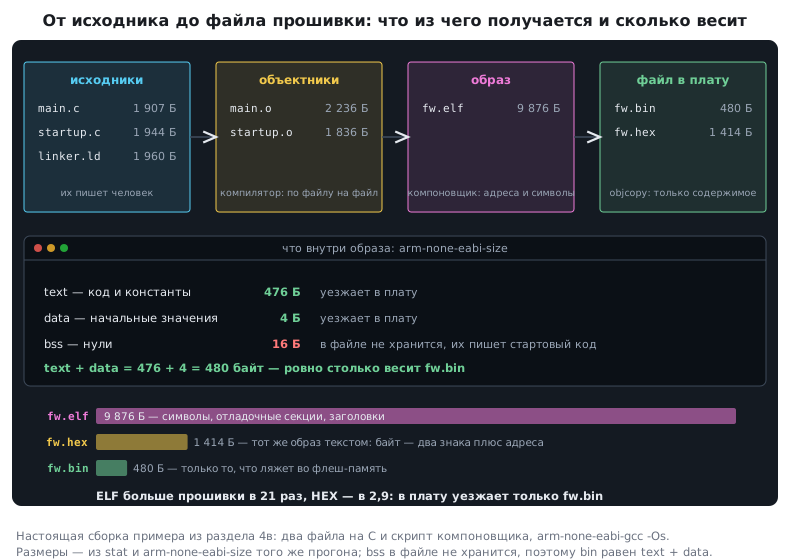
What you get at each step. It is useful to see the whole chain once —
with real sizes. Below, the example from section 4в is built: two C files and a
linker script, arm-none-eabi-gcc -Os.
Three things that can be seen only from the numbers:
- The ELF is not the firmware. It is 9876 bytes against 480 in
fw.bin: the twentyfold difference goes to symbols, debug sections and headers. The debugger needs them, the board does not. - The
.binistextplusdata, byte for byte. 476 + 4 = 480. Thebsssection (16 bytes in the example) is not stored in the file at all: these are zeros that the startup code lays out in RAM itself (section 4в). - The
.hexis three times larger than the.bin— 1414 against 480. It is text: each byte is written as two characters, and an address, a length and a checksum are added to each line. On the other hand, it can be sent to a programmer over a serial channel and read by eye. - The
.binhas no addresses. It is just bytes in a row, and when writing, the programmer is told the start address —0x08000000. In a.hexthe addresses are written in the file itself, so it is also suitable for an image made of scattered regions. If the image has a section at a distant address,objcopy -O binarywill fill the gap with zeros: sections at0x08000000and0x20000000give a 384 MB.bin.
⚠️ "The firmware does not fit" and "the ELF is large" are different things. Look at
textanddatafromsize, not at the size of the.elffile: only the former goes into flash memory.
A full firmware build adds to this the linking with the startup file and the linker script — that is what section 11 is about.
4.9 How the firmware gets into the board
Three ways, and it is useful to know all three.
1. SWD — the usual way. Two data wires (SWDIO, SWCLK) plus ground
and, if the board is not powered separately, supply. It always works and allows debugging.
On the Nucleo and the Discovery the programmer is already on the board.
2. The built-in bootloader — without a programmer. Every STM32 has a factory bootloader in system memory. To get into it, the state of the boot pins is changed:
| BOOT1 | BOOT0 | Where the MCU starts from |
|---|---|---|
| × | 0 | from Flash — normal operation |
| 0 | 1 | from system memory — the factory bootloader |
| 1 | 1 | from RAM — for debugging scenarios |
On the BluePill these are jumpers next to the reset button. Move BOOT0 to 1,
press Reset — the chip waits for firmware over USART1 (pins PA9, PA10), which
is what the USB–UART adapter is needed for. The program on the computer side is STM32CubeProgrammer.
On the F4 the bootloader can do more: besides UART it accepts firmware over USB DFU, so a single cable without any adapters is enough.
3. Straight from the IDE. The Download button (F8 in Keil) — the same SWD, just with one
click.
⚠️ A way to rescue a "bricked" board. If the program took over
PA13/PA14or goes into deep sleep at once, the debugger does not manage to connect, and the board seems dead. It is not dead: moveBOOT0to 1, reset — the code from Flash will not start, the bootloader starts instead, and the board can be reflashed.
4.10 A warm-up in C
Before sitting down with a chip, it is useful to warm up on tasks where the language meets the hardware: bits, addresses, number representation, file formats. Seven tasks are solved below and checked on a computer; details are in part IX.
1. Bits by mask. Set bits — v | mask, clear — v & ~mask. This is
how Flash works too (section 11): erasing sets all ones, and writing can only
clear them. The F4 allows a repeated write without erasing: if
0x12345678 was written into a cell, and then 0xFF00FF00 on top, it will contain
0x12005600 — the bitwise "AND" of both numbers. The F1 cannot do this: it does not write
an unerased cell at all and raises the PGERR flag, and the G0 and G4 the PROGERR flag;
the exception for all three is writing a zero.
2. A number in the form a · 2ᵇ. The library function frexpf decomposes a float
into a mantissa and an exponent: 10 = 0.625 · 2⁴, 0.1 = 0.8 · 2⁻³, −3 = −0.75 · 2².
The mantissa is always in [0.5; 1): only with this choice is the representation unique.
If [0.1; 1) were allowed, 0.4 would have four representations:
0.8 · 2⁻¹ = 0.4 · 2⁰ = 0.2 · 2¹ = 0.1 · 2². The floating-point format
is arranged the same way (section 69), only there the mantissa is taken in [1; 2)
and the leading one is not stored: 10 = 1.25 · 2³, the exponent is one less
than with frexpf.
3. A bit array. The bit with number index lies in word index / 32
at position index % 32:
int setbit(int index, int bit, uint32_t array[])
{
    uint32_t m = 1u << (index % 32);
    if (bit)
        array[index / 32] |= m;
    else
        array[index / 32] &= ~m;
    return bit;
}

int getbit(int index, uint32_t array[])
{
    return (int)((array[index / 32] >> (index % 32)) & 1u);
}
Bits 0, 31, 32, 63 and 70, with the 63rd cleared afterwards, give the words
0x80000001, 0x00000001, 0x00000040.
4. Writing to an address given as a number. This is how peripheral registers are written
(section 3); volatile keeps the compiler from throwing the write out:
void set_value(uintptr_t addr, uint32_t value)
{
    *(volatile uint32_t *)addr = value;
}
5. One word — four views. A union puts all the fields into the same four bytes:
typedef union {
    uint8_t  byte[4];
    uint16_t u16[2];
    uint32_t u32;
    float    f;
} my_type;
1.0f is the word 0x3F800000, the bytes 00 00 80 3F (the least significant comes first,
section 64) and the halfwords 0x0000 and 0x3F80. The other way round: the word 0x40490FDB
is 3.1415927.
6. A dump in Intel HEX format. A line is ":", the length, the address, the type, the data and a checksum that complements the sum of all bytes of the line to zero. The upper 16 bits of the address are set by a separate record of type 04, the end of file by a record of type 01:
static char *record(char *p, uint8_t type, uint16_t addr, const uint8_t *data, int len)
{
    uint8_t sum = (uint8_t)(len + (addr >> 8) + (addr & 0xFFu) + type);
    *p++ = ':';
    p = hex(p, (uint32_t)len, 2);
    p = hex(p, addr, 4);
    p = hex(p, type, 2);
    for (int i = 0; i < len; i++) {
        p = hex(p, data[i], 2);
        sum = (uint8_t)(sum + data[i]);
    }
    p = hex(p, (uint8_t)(0x100u - sum), 2);
    *p++ = '\n';
    return p;
}
Twenty bytes at address 0x0800 0100 give four lines:
:020000040800F2
:1001000001080F161D242B323940474E555C636A97
:0401100071787F86FD
:00000001FF
The simplified "address, data, simple sum" variant is not Intel HEX: without the length and the type a line cannot be parsed, and no programmer will accept a simple sum. Parsing the real format is in 48.7.
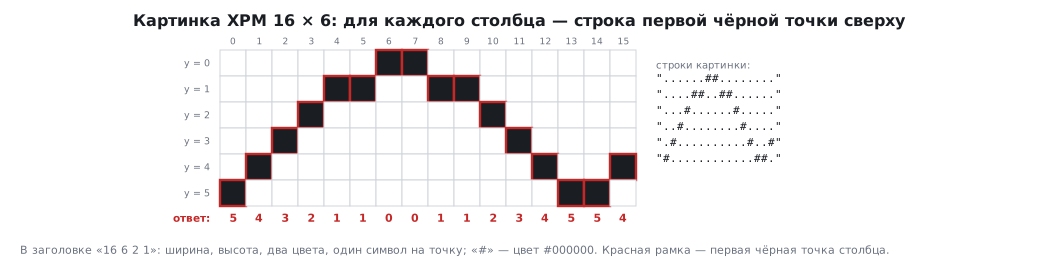
7. A curve from an XPM picture. XPM is a text picture format: a line "width height colours characters-per-pixel", colour lines and pixel lines. The function finds the character for black and for each column returns the Y of the first black pixel:
int parse_xpm(const char *const *xpm, uint16_t *result)
{
    int w, h, ncol, cpp;
    char black = 0;
    if (sscanf(xpm[0], "%d %d %d %d", &w, &h, &ncol, &cpp) != 4 || cpp != 1)
        return -1;
    for (int c = 1; c <= ncol; c++)
        if (strstr(xpm[c] + 1, "#000000") || strstr(xpm[c] + 1, "black"))
            black = xpm[c][0];
    if (!black)
        return -1;
    for (int x = 0; x < w; x++) {
        result[x] = 0xFFFFu;
        for (int y = 0; y < h; y++)
            if (xpm[1 + ncol + y][x] == black) {
                result[x] = (uint16_t)y;
                break;
            }
    }
    return w;
}
On a 16 × 6 picture with an arc the result was 5, 4, 3, 2, 1, 1, 0, 0, 1, 1, 2, 3, 4, 5, 5, 4.
4.11 Pitfalls
The device pack is installed, but there is no HAL. The pack gives the headers, the startup file and the debugger settings; HAL is installed separately and is not needed for working with registers (4.3).
Code disappeared after CubeMX regeneration. Write only between the USER CODE BEGIN/END markers (4.7).
"The firmware does not fit" although the ELF is small — or the other way round. What goes into Flash is text and data from size,
not the size of the .elf file (4.8).
The board has "died": the debugger will not connect. The program took over PA13/PA14 or went to sleep at once; BOOT0 = 1,
reset — the bootloader starts, and the board can be reflashed (4.9).
4.12 Summary
- A toolchain is an IDE, a compiler, a programmer and a debugger; they can be taken as a set or assembled from parts.
- Keil is simpler at the start and produces compact code. Free — MDK-Lite up to 32 KB or MDK-Community without a limit, but only for non-commercial projects; µVision works only under Windows. STM32CubeIDE is entirely free and works everywhere.
- Without the device support pack (DFP) the chip will not appear in the list when creating a project.
- For register-level programming
CMSIS → COREandDevice → Startupare enough; HAL is not mandatory. - In the debugger settings choose the SW port, not JTAG: on most cheap boards JTAG is not brought out.
- Code written outside the
USER CODE BEGIN/ENDmarkers will be erased by CubeMX at the next generation. - Compilation can be checked with a single
armclangcommand without any IDE — convenient both for other people's examples and for automatic checking. - A board with the SWD pins taken over is not lost:
BOOT0= 1 starts the factory bootloader, and it can be reflashed. - The C warm-up — bits, addresses, unions, floating-point numbers and file formats — uses the same techniques that will later be met in registers, Flash and the bootloader.
Next: section 4а "Keil: the project and the structure of a program".