 Embedded HandbookApps
132д. DipTrace: schematic and board together — hierarchy, SPICE, BOM, 3D
The schematic and the board live in two programs, and the main thing that happens between them is synchronization: a change in the schematic has to be carried over to the board, and a change on the board has to come back. This section is about the "schematic — board" link in DipTrace: updating the board and back annotation, the hierarchical schematic and copying the routing between identical blocks, the electrical rule check, the built-in SPICE simulator, rules in a separate file, exchanging netlists, the bill of materials and the 3D model of the board.
The built-in simulator was tested for real: the ngspice library from
the DipTrace package was started from Python without DipTrace itself and ran
an RC circuit. The menus were checked against the DipTrace 5.3 manual and the interface strings
of Schematic.exe and Pcb.exe. The check is _verify/dip132e_check.py.
Terms used in the documentation
Term Meaning renew design from schematic update the board from the schematic hierarchy block, hierarchy connector a hierarchical block and its pin global net a net shared by all levels of the hierarchy electrical rule check (ERC) checking the schematic against electrical rules SPICE model a description of a part for the simulator assembly variant a set of parts actually fitted on one board interactive BOM a bill of materials table linked to the board
132д.1 Schematic → board and back
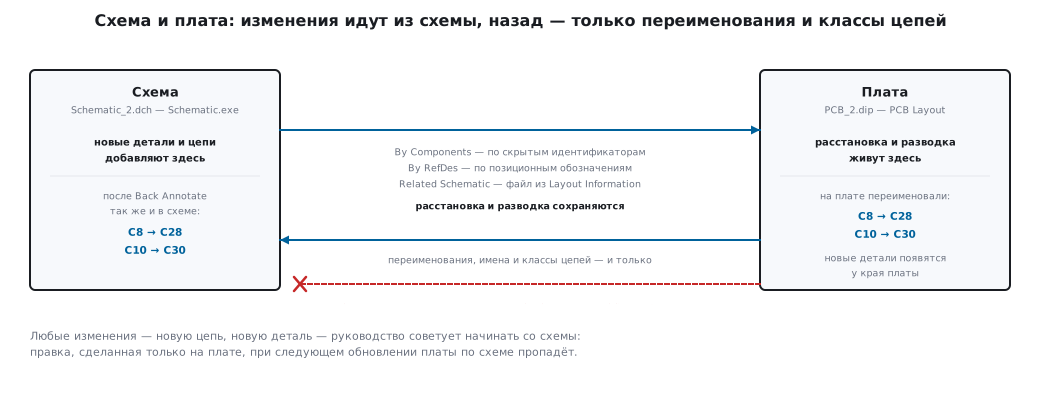
Update the board from the schematic — File / Renew Design from Schematic in PCB Layout. Three modes:
| Mode | How it matches "schematic part — footprint on the board" | Condition |
|---|---|---|
| By Components | by hidden identifiers | the schematic was drawn in DipTrace; designators may differ |
| By RefDes | by reference designators | designators on the board and in the schematic match |
| Related Schematic | like By Components, but from the linked schematic file | which file is linked is shown in File / Layout Information |
Placement and routing are kept, new parts appear at the edge of the board. The manual advises starting any change — a new net, a new part — in the schematic.
Back annotation — File / Back Annotate in the schematic: pick the board file,
and renamed parts, net names and net classes go over into the schematic. The manual's
example: on the board PCB_2.dip capacitors C8 and C10 were renamed to C28
and C30 — after back annotation they have the same names in Schematic_2.dch too.
But back annotation does not add new nets or parts — so it is meant for
small edits, not for working "from the board".
132д.2 Hierarchical schematic
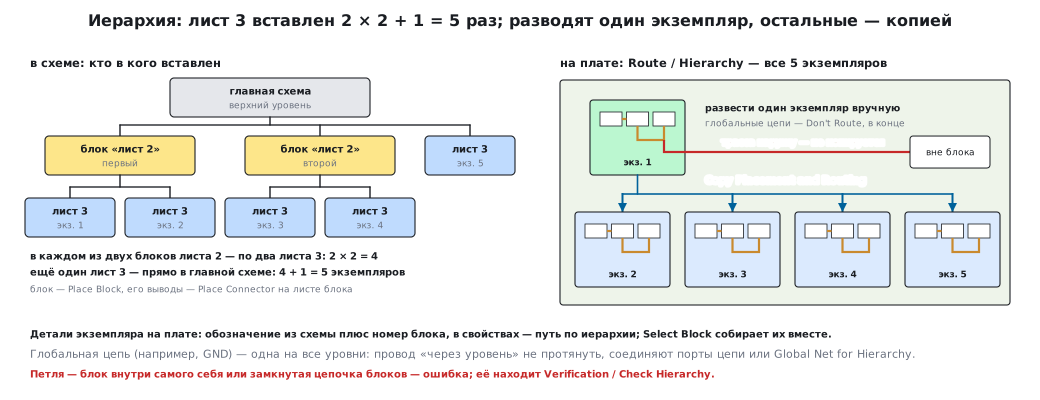
Hierarchy is a way to draw a repeating unit once and insert it into the schematic several times: an amplifier channel, a memory cell, a power switch.
- Edit / Add Sheet — a new sheet; Edit / Sheet Type / Hierarchy Block — turn it into a block.
- On the block sheet — Objects / Hierarchy / Place Connector: the block pins. Their position and rotation are the position of the block pins on the main sheet. Such pins cannot be placed on an ordinary sheet.
- Objects / Hierarchy / Place Block — insert the block; blocks can be inserted into each other too, with any number of levels.
Loops are forbidden. DipTrace will let you insert a block into itself or close a chain of blocks, but it is an error: Verification / Check Hierarchy finds it, and the board warns you when you open such a schematic.
Global nets. Pins on different levels cannot be joined by one net — only by a global net, which exists on all levels at once. Identical net ports (for example, GND) anywhere in the schematic are automatically merged into one net, and in a hierarchy into a global one. For an ordinary net — properties → Global Net for Hierarchy and Connect Nets by Name.
On the board. Block parts get the designator from the schematic plus the block number, and their properties hold the path through the hierarchy. Route / Hierarchy shows all inserted block instances. In the manual's example sheet 3 is inserted twice into each of the two blocks of sheet 2 and once more directly into the main schematic: 2 × 2 + 1 = 5 instances. Then:
- Select Block — gather the parts of an instance together;
- route one instance (global nets — Auto-route Mode: Don't Route, they are routed last);
- Copy Placement and Routing — repeat the placement and routing on the other instances. Traces that leave the block are not copied.
132д.3 Electrical rule check
Verification / Electrical Rule Setup — a "pin type × pin type" table: a click in a cell chooses whether such a connection is normal, a warning or an error. What to check:
| Checkbox | What it looks for |
|---|---|
| Pin Type | forbidden combinations of pin types from the table |
| Not Connected Pins | unconnected pins |
| Pin Superimposing | pins lying on top of each other |
| Only One Pin in Net, Nets With Single Pin | nets of a single pin — meaningless |
| Short Circuit | a connection between power and ground nets (they are listed below) |
Run it with Verification / Electrical Rule Check (ERC). On Schematic_2.dch from
the examples the manual gets one warning about a bidirectional pin
connected to an output and many unconnected pins.
A pin that is left free on purpose is marked: right click → Not Connected. Unticking Not Connected Pins altogether is worse — then the program stops noticing forgotten pins as well.
132д.4 SPICE: the built-in ngspice
In the schematic — Tools / SPICE Simulator. Every part must have a SPICE model: right click → SPICE Model. For a capacitor the Capacitor type and the capacitance are enough; a transistor has a Model tab — the model text or a file from the manufacturer (Load). Get Spice Model from Library takes the settings from another library, Apply to Other Parts hands them out to identical parts.
The manual's example is the multivibrator Astable_Flip_Flop_Spice.dch: the battery
has no model, so it is given a PULSE() source with V2 = 5 V, PW = 20 s, PER = 30 s —
the voltage is present for 20 seconds and absent for 10 seconds. Simulation is the Transient tab,
the result is the currents through two LEDs that light up in turn.
For digital circuits there is the Digital tab (example RS-trigger.dch on
Digital:Nand models), and buses can be shown as hexadecimal numbers.
A netlist for an external simulator — File / Export / Spice Netlist
with a command such as .TRAN 0s 30s 0.1s.
What is inside. The DipTrace folder holds ngspice64/ngspice-41_64.dll — an ordinary
ngspice 41 shared library with the standard programming interface.
You can call it without DipTrace too (_verify/dip132e/dtspice.py):
os.environ["SPICE_SCRIPTS"] = os.path.dirname(DLL)
ng = C.CDLL(DLL)
ng.ngGet_Vec_Info.restype = C.POINTER(VecInfo)
ng.ngSpice_Init(PRINT, STAT, EXIT, None, None, None, None)


def run(lines):
    arr = (C.c_char_p * (len(lines) + 1))(*[l.encode() for l in lines], None)
    ng.ngSpice_Circ(arr)
    ng.ngSpice_Command(b"run")
RC circuit 10 kΩ · 100 nF, τ = 1 ms:
| Measurement | DipTrace simulator | Theory |
|---|---|---|
| voltage at τ after a 5 V step | 3.1607 V | 5 · (1 − 1/e) = 3.1606 V |
| −3 dB cutoff frequency | 159.2 Hz | 1 / (2π · 1 ms) = 159.2 Hz |
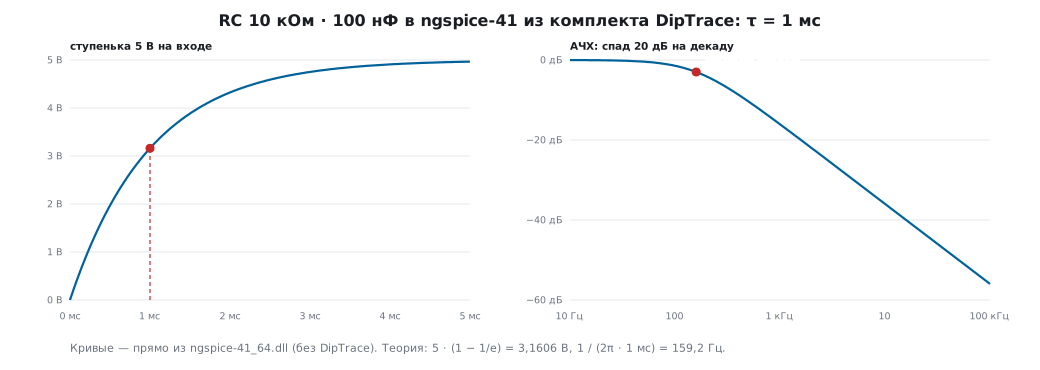
The library answers with the string "ngspice-41 shared library". So the SPICE inside DipTrace is the same ngspice as in the sections on analog circuit simulation (there it is version 39 in a container); models and techniques from there work here as well.
132д.5 Rules in a file and netlist exchange
Board rules — layers, net classes, via styles, check rules — do not have to be set up again:
- a new project: File / New → Use Rules and Settings from Previous Layout — take everything from a finished board;
- Route / Save Rules — save the rules to a separate
.rulfile, Route / Load Rules — load them from.rul,.dipor.dipxml.
It is handy to keep a .rul for each fab: its minimum clearances, via styles
and layer stack.
The netlist. Export from the schematic — File / Export / Netlist,
import into the board — File / Import / Netlist; the formats are Accel, Allegro, Mentor,
OrCAD, PADS, P-CAD, Protel and Tango. On import every part must get
a footprint: Assign All Patterns by Names matches by name, the rest are matched by hand
(Attach to Component); an asterisk next to a footprint name means "assigned by hand".
The standard libraries are in Program Files\DipTrace\Lib, your own ones in
Documents/DipTrace/My Libraries.
132д.6 Bill of materials
File / Export / Bill of Materials — in the schematic and on the board; the board offers more options.
- Assembly variants: several sets of "which parts we fit" for one board; the Default variant is the board itself and cannot be changed.
- Suppliers and prices — for each part; the BOM can be built for one supplier or for the parts without a supplier.
- Grouping of rows (for example, by component) and columns — name, designator, value, quantity and so on, in the order you need.
Four ways to output the result:
| Way | What you get |
|---|---|
| Place Table | a table on the board (Top Assembly layer) that updates itself when the board is edited |
| interactive BOM | a table window: the selected row highlights the parts on the board |
| Export to File | CSV or .bom with a choice of separator and quotes |
| Export HTML | a page for the browser: the BOM next to the board, "fitted" check marks |
On the HTML page buttons change the grouping (by name; name and value; name and footprint; all three) and show the top, the bottom or both sides of the board.
132д.7 3D model of the board
The 3D button in PCB Layout opens the Attached 3D Models window: DipTrace checks whether all
parts have models and tries to find the missing ones. Parts without a model
appear in 3D only as land patterns. The standard 3D libraries
are not part of the installation — they are downloaded separately; by default they live
in the models3d folder inside DipTrace.
Export — Export STEP or Export VRML (VRML 2.0). For mechanical CAD the manual recommends STEP as a single body (Solid body). Holes in the model slow the export down a lot. The common mask settings for the 3D view are set in the Gerber export window.
Model matching — Tools / 3D Preview / Patterns and Models Search: how strict the matching is and which folders to search. And the best moment to attach a model is when the footprint is being made (section 132а).
132д.8 Pitfalls
The board was edited, the schematic was not, and then the board was updated from the schematic. The edit is lost. Any changes go into the schematic first; on the board — only what back annotation will carry over (renames, net names and net classes).
Back annotation "did not carry over" a new part. It cannot: new nets and parts come only from the schematic.
Updating By RefDes mixed up the parts. The designators in the schematic and on the board have drifted apart. For schematics drawn in DipTrace use the By Components mode.
A block is inserted into itself. DipTrace allows it, but it is an error — Verification / Check Hierarchy.
GND on different sheets is different nets. They are joined by net ports or a global net; you cannot draw a wire "through a level".
The copied block routing has no external traces. That is by design: traces leaving the block are not copied.
ERC buried you in "unconnected pins". Mark the pins that are free on purpose as Not Connected instead of switching the check off.
The simulation does not start. Some part has no SPICE model — like the battery in the manual's example.
The 3D view is empty. The 3D model libraries are not installed — they are downloaded separately.
132д.9 Summary
- Changes go into the schematic, then Renew Design from Schematic; back annotation is only for renames.
- Hierarchy: sheet → Hierarchy Block, pins — Place Connector, insertion — Place Block; on the board Copy Placement and Routing replicates the block routing.
- ERC catches pin type conflicts, single-pin nets and power-to-ground shorts; pins free on purpose are marked Not Connected.
- The SPICE inside DipTrace is ngspice 41; its library gives 3.1607 V at τ on the RC circuit and 159.2 Hz at −3 dB — just like the theory.
- Rules go into
.rul, netlists into eight formats, the BOM into a table on the board, CSV or HTML, the board into STEP as a single body.
Full source code
dtspice.py — running an RC circuit through the ngspice built into DipTrace.
# -*- coding: utf-8 -*-
"""Прогон схемы через ngspice, встроенный в DipTrace (ngspice64/ngspice-41_64.dll), без DipTrace.

    python dtspice.py
RC-цепь 10 кОм · 100 нФ: переходный процесс от ступеньки 5 В и частотная характеристика."""
import ctypes as C
import math
import os

DLL = r"C:\Program Files\DipTrace\ngspice64\ngspice-41_64.dll"

class VecInfo(C.Structure):
    _fields_ = [("name", C.c_char_p), ("type", C.c_int), ("flags", C.c_short),
                ("real", C.POINTER(C.c_double)), ("comp", C.c_void_p), ("length", C.c_int)]

OUT = []
PRINT = C.CFUNCTYPE(C.c_int, C.c_char_p, C.c_int, C.c_void_p)(lambda s, i, u: OUT.append(s.decode(errors="replace")) or 0)
STAT = C.CFUNCTYPE(C.c_int, C.c_char_p, C.c_int, C.c_void_p)(lambda s, i, u: 0)
EXIT = C.CFUNCTYPE(C.c_int, C.c_int, C.c_bool, C.c_bool, C.c_int, C.c_void_p)(lambda *a: 0)

os.environ["SPICE_SCRIPTS"] = os.path.dirname(DLL)
ng = C.CDLL(DLL)
ng.ngGet_Vec_Info.restype = C.POINTER(VecInfo)
ng.ngSpice_Init(PRINT, STAT, EXIT, None, None, None, None)


def run(lines):
    arr = (C.c_char_p * (len(lines) + 1))(*[l.encode() for l in lines], None)
    ng.ngSpice_Circ(arr)
    ng.ngSpice_Command(b"run")


def vec(name):
    v = ng.ngGet_Vec_Info(name.encode()).contents
    if v.real:
        return [v.real[i] for i in range(v.length)]
    z = C.cast(v.comp, C.POINTER(C.c_double))       # комплексный вектор: пары (Re, Im)
    return [complex(z[2 * i], z[2 * i + 1]) for i in range(v.length)]


R, Cf = 10e3, 100e-9
TAU = R * Cf                                      # 1 мс
run(["* rc step", "V1 in 0 PULSE(0 5 0 1n 1n 1 2)", "R1 in out 10k", "C1 out 0 100n",
     ".tran 1u 5m", ".end"])
t, v = vec("time"), vec("out")
at = lambda T: min(range(len(t)), key=lambda i: abs(t[i] - T))
v_tau = v[at(TAU)]

run(["* rc ac", "V1 in 0 AC 1", "R1 in out 10k", "C1 out 0 100n", ".ac dec 200 10 100k", ".end"])
f = [x.real for x in vec("frequency")]
mag = [abs(x) for x in vec("out")]
k = next(i for i in range(len(mag)) if mag[i] < 1 / math.sqrt(2))   # первая точка ниже −3 дБ
u = (mag[k - 1] - 1 / math.sqrt(2)) / (mag[k - 1] - mag[k])          # между k−1 и k — по логарифму частоты
f3 = math.exp(math.log(f[k - 1]) + u * (math.log(f[k]) - math.log(f[k - 1])))

ver = next((l for l in OUT if "ngspice-" in l.lower()), "")
print("версия:", ver.strip())
print("tau = %.3f мс; v(tau) = %.4f В (теория %.4f)" % (TAU * 1e3, v_tau, 5 * (1 - math.exp(-1))))
print("f_-3dB = %.1f Гц (теория %.1f)" % (f3, 1 / (2 * math.pi * TAU)))

# журналы для рисунка 132д.4 — только если задана папка DT_OUT
out_dir = os.environ.get("DT_OUT")
if out_dir:
    with open(os.path.join(out_dir, "rc_tran.csv"), "w", encoding="utf-8", newline="\n") as fo:
        for i in range(0, len(t), max(1, len(t) // 250)):
            fo.write("%.6e,%.5f\n" % (t[i], v[i]))
    with open(os.path.join(out_dir, "rc_ac.csv"), "w", encoding="utf-8", newline="\n") as fo:
        for i in range(0, len(f), 4):
            fo.write("%.4e,%.4f\n" % (f[i], 20 * math.log10(mag[i])))
Next: section 133 "Altium Designer" — the project, rules and output files.