 Embedded HandbookApps
132б. DipTrace: layers, rules, routing and copper
In section 132 the board was routed by the autorouter with the default settings. A real board is never done that way: power traces are wider, ground gets a copper pour, the connector needs a cutout in the board, and copper is forbidden under the crystal. This section shows how to set all of that up in DipTrace: the outline and cutouts, layers, vias, net classes with their clearances, manual routing with trace pushing, and copper pours with thermals and priorities.
Menus, keys and numbers were checked against the manual of the installed DipTrace 5.3
and against the interface strings inside Pcb.exe; the inch-to-millimetre conversions
and the thermal example were calculated. Checked by _verify/dip132b_check.py.
Terms used in the documentation
Term Meaning board cutout a hole cut out of the board route keepout an area where no copper is allowed plane layer an inner layer reserved for copper pours trace via, static via a via that is part of a trace, and a standalone via via style a named set of via sizes class to class clearance the clearance between nets of two classes copper pour a filled copper area pour priority which pour wins where two pours meet thermal, spoke a thermal relief and one of its spokes island removal deleting islands — pieces of a pour with no net teardrop a smooth widening where a trace meets a pad push traces, walk around pushing traces aside and routing around obstacles
132б.1 Outline, cutouts and route keepouts
You draw the outline point by point on the board, or enter it as a table in Objects / Board Points: points in absolute or relative coordinates, the Arc checkbox makes a point the middle of an arc, and Create Rectangular Board builds a rectangle from a corner, a width and a height. Ready-made round boards and rectangular boards with rounded corners are also available. A complex outline is easier to draw as shapes on the Board Cutout layer and turn into an outline with Convert to Board Outline.
Put the origin at the lower left corner of the board (View / Define Origin / By Mouse Pointer). All coordinates are measured from it, and a part's position is measured from the origin of its pattern, set in the pattern editor (section 132а).
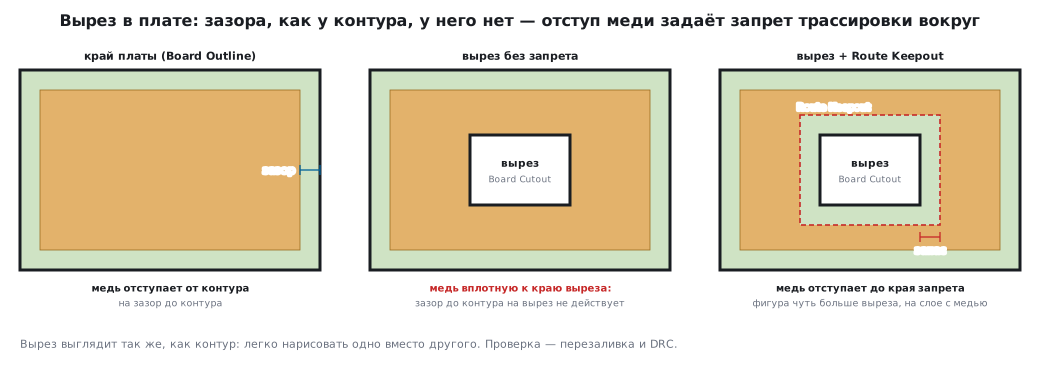
A cutout is a shape on the Board Cutout layer, or any shape whose properties have the Board Cutout type selected. There are two traps:
- a cutout looks exactly like the outline — it is easy to place one instead of the other;
- a cutout has no clearance, unlike the outline. Pours and traces will come right up to the edge of the cutout.
That is why you draw a route keepout (Route Keepout) around a cutout — a shape slightly larger than the cutout on the signal layer you need. The autorouter does not route traces into a keepout, and a manual trace there gives a verification error.
132б.2 Layers
Layers are signal and non-signal. Non-signal layers — silkscreen (Silk), paste (Paste), solder mask (Mask), assembly drawing (Assembly) and others — DipTrace creates by itself for both sides.
Signal layers come in two types:
| Type | What goes on it | Autorouting |
|---|---|---|
| Signal | traces, sometimes pours | yes |
| Plane (plane layer) | one or more pours, usually ground and power | no |
You add layers in Route / Layer Setup. A plane layer can be connected to a net right away. Pads on inner layers are always round; their annular ring is set by one size for the whole layer. A custom non-signal layer has a side: None, Top or Bottom; None means the layer is not tied to a side.
DipTrace shows the bottom layer "through a transparent board". View / Mirror mirrors the board on screen only: when you export Gerber, the bottom layer comes out correct anyway. By default inactive layers are shown in Contrast mode at 50% opacity; you can edit objects on inactive layers only in Contrast Edit mode. You switch layers with keys 1…0, T and B.
132б.3 Vias
By construction, vias are through vias or blind/buried (Blind/Buried); by their behaviour in the program there are two kinds:
| Kind | How it appears | What you can do with it |
|---|---|---|
| trace via (Trace Via) | by itself, when a trace segment moves to another layer | lives and disappears together with the trace |
| static via (Static Via) | placed by hand, or converted from a trace via (Convert Via to Static) | behaves almost like a pad; can be turned back into a trace via — unless it was placed by hand from the start |
Every via belongs to a style: Route / Via Styles. The Default style is 0.039 inch (0.99 mm) outer diameter and a 0.02 inch (0.51 mm) hole. Change a style and all vias of that style change, including those already on the board. A blind via is defined by a pair of layers; it cannot exist on a two-layer board — it has nowhere to end.
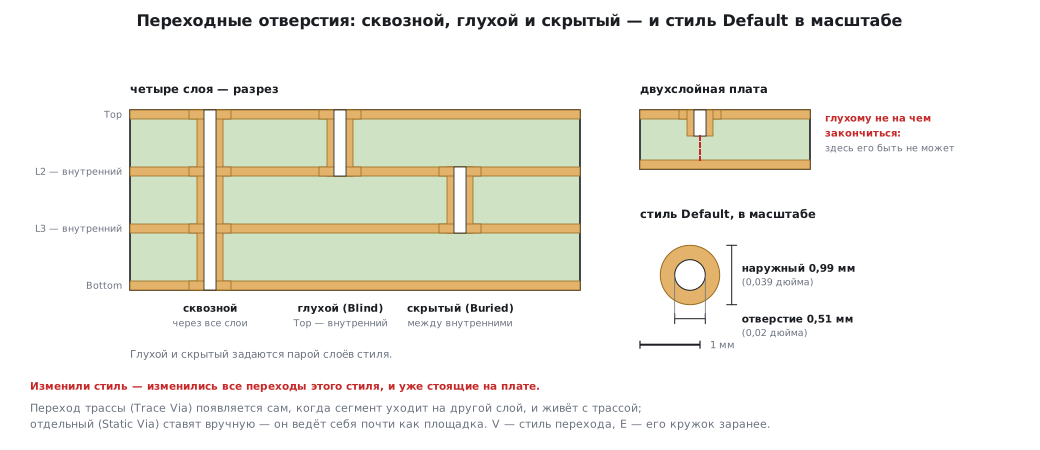
During manual routing the V key selects the via style that will appear on a layer change, and E shows its circle in advance. The Auto style is the one that takes the least space.
132б.4 Net classes and clearances
Every net belongs to a class, Default at first. A class sets the trace width, the clearance and the allowed via styles, and it applies both to manual routing and to autorouting. You set up classes before routing: Route / Net Classes.
- An asterisk
*in a field means the default value. - Clearing the All Layers checkbox lets you set width and clearance per layer.
- Clearing Use All Styles lets you restrict the class's via styles with the
<<and>>buttons. - Clearance Details — separate clearances for pairs of object types, for example trace to pad (Trace to Pad).
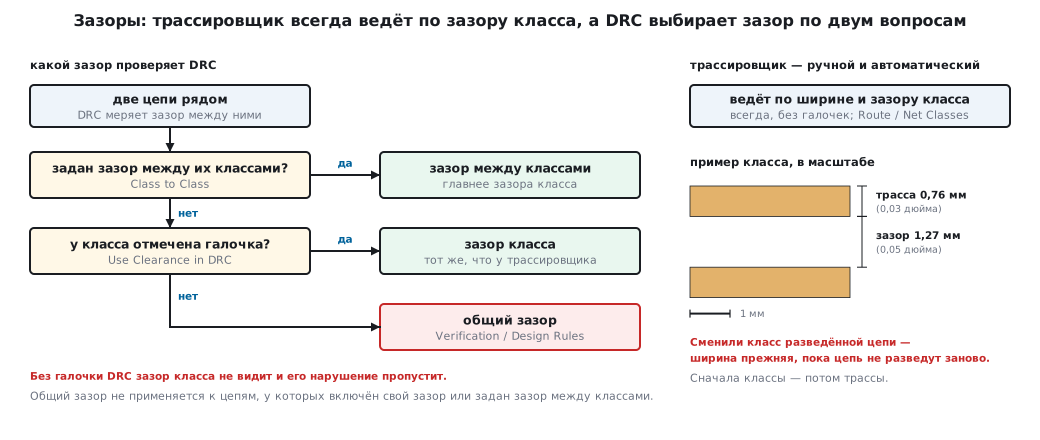
- Class to Class — the clearance between nets of two classes. Design rule checking ranks it above the ordinary class clearance.
- Use Clearance in DRC — by default class clearances are obeyed only by the router; with this checkbox DRC checks them too. And the reverse: the general clearances from Verification / Design Rules do not apply to nets that have their own clearance enabled or a class-to-class clearance set.
The quick way is Route / Routing Setup: it edits the Default class and the Default via style in one window.
The example from the manual: a class with a 0.03 inch (0.76 mm) trace and a 0.05 inch (1.27 mm) clearance. After autorouting, one net of this class is visibly thicker than the rest.
You can change the class of an already routed net, but it takes effect only after the net is routed again. On the manual routing panel the class is not changed at all: such a change applies only to a new net.
132б.5 Manual routing
The mode is Route / Manual Routing / Add Trace, key ~. The
Routing panel on the left has four helpers:
| Helper | Key | What it does |
|---|---|---|
| Push Traces | I | pushes already routed traces aside to make room |
| Walk Around | Y | routes the trace around obstacles |
| Show Errors | — | red circles on violations — right while you route |
| Follow Rules | F | does not let you place a segment with a violation: it becomes dashed |
The manual advises turning on pushing and walk-around together: the program decides by itself where to push neighbours aside and where to go around. The balance is set by the Push vs Walkaround parameter in Route / Interactive Routing. The same window sets whether to move vias (Push Trace Vias, Push Static Vias) and how far to look for room beyond an obstacle: the manual gives 0.5 inch (12.7 mm), and in the program window itself the field is labelled Jump Over Obstacle. The same helpers work when you edit traces and when you move parts; if a part will not move, turn off Follow Rules.
Other keys:
| Key | Action |
|---|---|
| U | step back while routing |
| M, S | routing mode and current segment (straight, three-point arc…) |
| D | fix only the first part of the polyline |
| W | trace width |
| T, B, L, 1…0 | top, bottom, layer selection, layer by number |
| J | jumper |
| V, E | via style and its preview |
| A | angle step |
| H | net highlighting |
| P | pause: fix something on the board and continue the same trace |
Editing. The normal mode moves traces while keeping 45 and 90° angles; Free Edit Trace works without restrictions. N adds a node on a segment, and Tab cycles the selection: segment → trace → whole net.
Teardrops (Teardrops) are smooth widenings where a trace enters a pad or a via. They add strength under heating and mechanical stress and give margin for manufacturing tolerances. In the manual's example: length 50%, width at the pad 90% of its size.
132б.6 Autorouters
| Shape Router | Grid Router | |
|---|---|---|
| how it finds a path | by shapes, without a grid | on a grid |
| what it is for | any board — the default choice | simple and single-layer boards |
| jumpers | no | yes (Allow Jumper Wires) |
You choose it in Route / Current Autorouter, set it up in Route / Autorouter Setup, and start it with Route / Run Autorouter (Ctrl+F9). After routing, DRC runs automatically; you can clear that checkbox in the same menu.
A single-layer board on Shape Router: Settings tab → Use Priority Layer Directions → set the direction of the Top layer to Off. The router will not place a single trace on it.
Two layers and more: clear the same checkbox — otherwise one layer ends up mostly horizontal and the other vertical.
Automatically Remove Loops is on by default — the router removes closed loops. If you need a loop, set Do Not Remove Loops on the net.
The usual approach: route the critical nets — crystal, power, differential pairs — by hand and lock them, and leave the rest to the autorouter.
132б.7 Copper pour
A pour is a low-resistance conductor for power and ground. Objects / Place Copper Pour, draw the outline point by point, right-click → Enter. The window has three tabs:
| Tab | What it sets |
|---|---|
| Pouring | solid or hatched, clearance, line width and spacing, island removal, priority, state; the clearance can be taken from the net class |
| Connectivity | which net to connect to, thermals (separately for SMD), whether to hide ratlines |
| Border | the outline; Depending on Board — pour the whole layer along the board outline, Snap to Board — follow the outline when it changes |
A pour is built without a grid, from lines of a given width: the thinner the lines and the smaller the spacing, the more accurate the shape, but the longer the update and the check.
The properties open when you click the edge of the pour — not the copper and not the board outline. The same place holds State: Poured or Unpoured (only the edge is shown — handy for editing what lies under the pour, and the ratlines are visible again).
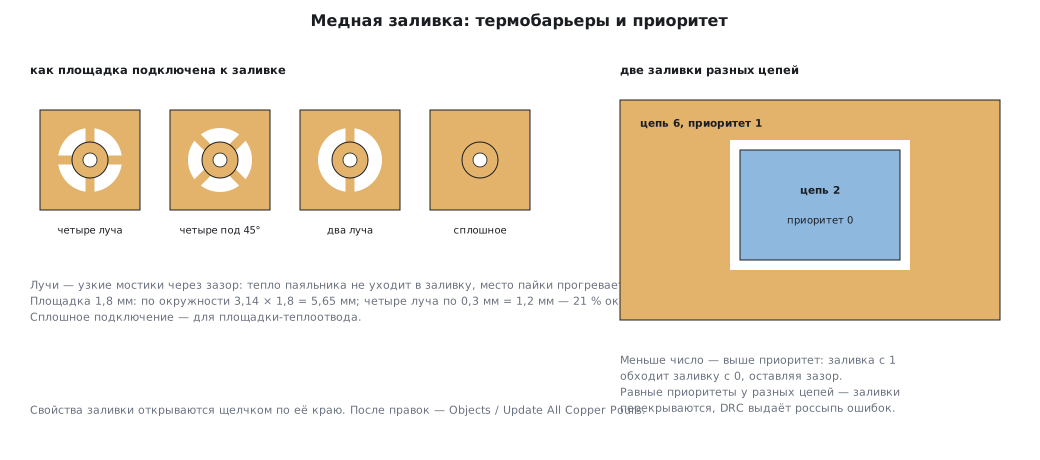
Priority (Pour Priority): a smaller number means a higher priority, and all pours default to 0. A pour with a larger number goes around a pour with a smaller one. Two pours of different nets with the same priority overlap — and design rule checking reports a pile of errors.
A thermal connects a pad to the pour not with solid copper but with several spokes. Without it the pad drains the soldering iron's heat into the pour, and the joint does not warm up. In the manual's example: four spokes, four spokes at 45°, two spokes at 90°, and a direct solid connection. For an individual pad you change the setting through Thermal Settings → Use Custom Settings — that is how you fix a pad that ended up unconnected after pouring: there was no room for the spokes.
How much copper is left around a pad with a thermal is easy to calculate: a pad 1.8 mm in diameter has 3.14 × 1.8 = 5.65 mm of copper around its circumference; four spokes of 0.3 mm each make 1.2 mm, that is 21% of the circumference. The cross-section through which heat flows into the pour is almost five times smaller — that is what the thermal is for. A heat-sink pad, on the other hand, needs a solid connection.
Islands are pieces of a pour not connected to its net. Island Removal → Unconnected deletes them. You can also keep them by connecting them to ground with vias: Edit / Edit Selection with the Keep Selected action and a via filter of Not Connected selects the unconnected vias inside a frame, and Add to Net / Selected Vias connects them all at once.
After edits — Objects / Update All Copper Pours.
Text in copper. In the text properties: type Signal, the required layer and Invert Text — the lettering will be etched out of the pour.
132б.8 Locking
Lock Selected — the selection cannot be moved, rotated or changed; its selection frame is paler, and the tooltip says "Locked". To release it — Edit / Unlock Selected (Ctrl+Alt+L). Edit / Lock Components / Top or Bottom locks all parts on that side — after placement this protects it from being moved by accident during routing.
132б.9 Pitfalls
A pour came right up to a cutout. A cutout has no outline clearance. Put a route keepout slightly larger than the cutout around it.
The autorouter does not place traces on an inner layer. The layer is a plane layer (Plane): only pours go on it. If you need traces, use type Signal.
The net class was changed, but the width stayed the same. The class of a routed net applies after the net is routed again. Classes first, then traces.
DRC does not see a class clearance violation. Use Clearance in DRC is not checked: without it the class clearance is obeyed only by the router.
The general clearance from the rules "does not work" on some nets. Those nets have their own clearance in DRC or a class-to-class clearance — and that one wins.
Two pours — hundreds of errors. Pours of different nets with equal priority. Give one of them priority 1.
The pour properties will not open. You clicked the copper; you need to click the edge of the pour.
A pad did not connect to the pour. The thermal spokes had no room — give this pad its own thermal setting.
The via style was changed — clearances shifted across the whole board. A style changes all of its vias. Create a separate style for special places.
A blind via cannot be created. It cannot exist on a two-layer board.
132б.10 Summary
- Outline — point by point or as a table; origin — at the lower left corner. A cutout has no clearance — put a route keepout around it.
- A Signal layer is for traces, a Plane layer for pours; the autorouter works only on Signal layers. Pads on inner layers are round.
- Trace vias appear by themselves, static vias are placed by hand; the Default style is 0.039/0.02 inch (0.99/0.51 mm); editing a style changes all its vias.
- Net classes come before routing; a class-to-class clearance beats the class clearance; without Use Clearance in DRC the check does not see the class clearance.
- Push Traces (I) and Walk Around (Y) — together; Follow Rules (F) will not let a violation through.
- Shape Router is the default; Grid Router is for jumpers.
- Pours: a smaller number means a higher priority; equal priority on different nets means errors; a thermal leaves the pad about a fifth of its copper.
Next: section 132в "DipTrace: checks, panels and fabrication files".